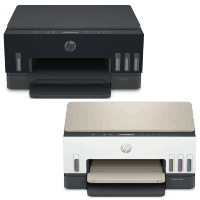
HP Smart Tank 5003 Printer Manual
 | PDF manual |  | 105 pages |  | English |
Brief summary:
The HP Smart Tank 5000–5100 Series manual explains how to set up, connect, operate, maintain, and troubleshoot the printer. It covers printing from computers and mobile devices, copying, scanning, ink management, Wi-Fi connectivity, printhead care, paper handling, and common printer errors. HP Smart is the main application used to set up, manage, print, and scan with the printer.
- Printing
Print from Windows, Mac, and supported mobile devices using HP Smart. Wi-Fi models also support AirPrint, HP Print Service Plugin, and Wi-Fi Direct. Up to five devices can connect through Wi-Fi Direct. - Copying
Make black-and-white or color copies directly from the control panel. The printer also includes an ID Copy function for copying both sides of an identification card onto one page. - Scanning
Scan documents and photos using HP Smart, HP printer software, or Webscan through the Embedded Web Server. Windows users can adjust resolution, contrast, paper size, orientation, and scan destinations. - HP Smart App
HP Smart helps users set up the printer, print, scan, manage printer settings, check status, print reports, and order supplies. It can be installed on supported computers and mobile devices. - Wi-Fi and USB Connections
Wi-Fi models can connect through HP Smart, WPS, or standard wireless setup. The printer can also be connected directly to a computer with USB. The Wi-Fi models support 2.4 GHz wireless connections. - Paper Handling
Load paper with the printable side facing up and adjust the paper-width guide against the paper without bending it. Do not add paper while printing or mix different paper sizes and types in the tray. - Ink Management
Ink levels can be checked directly on the tanks, through HP Smart, or through the HP printer software. Refill the appropriate tank when ink is low and use the correct ink bottle for each color. - Printhead Care
The printer uses separate black and color printheads. Handle them carefully, do not touch the electrical contacts or nozzles, and do not open the printhead cover unless instructed. Printheads can be aligned or cleaned when print quality problems occur. - Maintenance
Regular maintenance includes cleaning the printer, scanner glass, paper rollers, and printhead contacts when necessary. Proper shutdown using the Power button helps protect the printheads from drying out. - Troubleshooting
The manual provides solutions for paper jams, paper-feed problems, printhead errors, poor print quality, ink errors, scanning problems, Wi-Fi issues, and printer error codes E1–E9.
Common User Problems and Solutions
Printer does not print
Check that the printer is powered on, has paper loaded, and is not paused or offline. For Windows, check the print queue and restart the Print Spooler if necessary.
Paper does not feed correctly
Make sure the paper is properly loaded and the paper-width guide is correctly positioned. Do not overload the tray, use curled paper, or mix different paper types and sizes.
Paper jam occurs
Check the input tray, output tray, printhead access area, and bottom of the printer. Remove the paper carefully with both hands and do not use sharp tools to remove jammed objects.
Pages are skewed or multiple sheets are picked up
Align the paper correctly with the guides, avoid overloading the input tray, make sure sheets are not sticking together, and clean the paper rollers if necessary.
Print quality is poor
Print a print-quality diagnostic page. If there are streaks, missing colors, or misaligned lines, clean or align the printheads. If the problem continues, HP recommends contacting support.
Printhead error appears
Make sure the printheads are installed correctly and that no orange cap or protective tape remains. Use the correct HP printheads and avoid touching the electrical contacts or nozzles.
Ink warning or E7 error appears
Check the ink icons. If a tank is low, refill it. E7 indicates that one or more ink tanks are out of ink.
Wi-Fi connection does not work
Check the Wi-Fi light and connection status. Reconnect the printer using HP Smart or WPS. If necessary, restore the printer’s network settings and set up the Wi-Fi connection again.
E1 or E2 error appears
E1 indicates a paper-size mismatch and E2 indicates a paper-length mismatch. Load paper that matches the print settings or change the paper settings, then print again.
E3, E4, E5, E6, E8, or E9 error appears
E3 indicates a carriage problem, E4 a paper jam, E5 a scanner problem, E6 a general printer error, E8 a fatal error, and E9 a firmware or update error. Follow the corresponding recovery procedure in the manual and restart the printer when instructed.