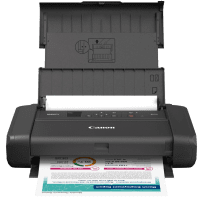
Canon MAXIFY BX110 Printer Manual
 | PDF manual |  | 414 pages |  | English |
Brief summary:
The Canon BX110 / TR160 series manual explains printer setup and operation, paper and ink management, computer and mobile printing, Wi-Fi and Wireless Direct connections, maintenance, print-quality adjustments, and troubleshooting. The manual also includes detailed support information for network, paper-feed, printing, and error-code problems.
- Printing
- Print photos and documents from a computer, smartphone, or tablet.
- Windows uses the Canon printer driver, while macOS supports AirPrint.
- Canon application software can also be used for printing.
- Printing from Chromebooks is supported.
- Smartphone and Tablet Printing
- Print using the Canon PRINT app.
- iOS devices can use AirPrint.
- Android devices can use Canon PRINT or Canon Print Service.
- Mopria is also supported.
- Wireless and USB Connections
- The printer can connect through Wi-Fi or USB.
- Wireless Direct allows devices to connect directly to the printer without a wireless router.
- Up to five devices can connect through Wireless Direct at the same time.
- Paper Handling
- Paper is loaded through the rear tray.
- Load paper in portrait orientation with the printable side facing up.
- Align the paper stack against the right side of the tray and adjust the paper guide.
- Paper size and media type settings must match the loaded paper.
- Ink Tanks
- The printer uses two ink tanks and both must be installed for printing.
- Replace ink tanks one at a time.
- Do not touch the electrical contacts or open ink port.
- Use a new replacement ink tank and install it immediately after removing the old one.
- Print Quality Maintenance
- Use the nozzle check pattern when ink is missing, colors are incorrect, or streaks appear.
- Clean the print head when the nozzle pattern shows missing lines or white streaks.
- Deep cleaning should only be performed when standard cleaning does not resolve the problem because it uses more ink.
- Print Head Alignment
- Automatic print head alignment corrects misaligned lines and other alignment problems.
- Manual alignment is available if automatic alignment does not produce satisfactory results.
- Network Troubleshooting
- Wi-Fi Connection Assistant can diagnose and repair network connection problems.
- Network settings can be checked or changed from the printer or computer.
- Wireless Direct can be used when a router is not available.
- Paper and Printing Problems
- If paper is not feeding, check the paper load, orientation, paper type, paper size, and tray position.
- Make sure paper is not too thick or curled.
- Clean the paper feed roller only when necessary because cleaning abrades the roller.
- Printer Settings and Maintenance
- The operation panel provides access to print, feed, LAN, maintenance, firmware, reset, ECO, and quiet settings.
- The printer can check ink status, print nozzle patterns, clean the print head, and align the print head.
- The manual also provides detailed support codes for printer errors and paper jams.
Common User Problems and Solutions
Printer does not print
- Make sure the printer is turned on and the ON lamp has stopped flashing.
- Check the USB or network connection.
- Remove unnecessary print jobs from the queue.
- Make sure the correct Canon printer driver is selected.
- Check that the paper settings match the paper loaded in the rear tray.
Paper does not feed or “No Paper” appears
- Make sure paper is loaded correctly in the rear tray.
- Load paper in portrait orientation with the printable side facing up.
- Align the paper stack and adjust the paper guide.
- Do not exceed the recommended paper load limit.
- Check that the paper is not too thick or curled.
Printer cannot be found on the network
- Confirm that the printer is correctly connected to the Wi-Fi network.
- Check the wireless router and network settings.
- Use Canon Wi-Fi Connection Assistant to diagnose and repair the connection.
- If necessary, check or restore the printer’s LAN settings.
Smartphone or tablet cannot connect using Wireless Direct
- Make sure Wireless Direct is enabled on the printer.
- Enable Wi-Fi on the smartphone or tablet.
- Select the printer’s Wireless Direct network name.
- Enter the correct Wireless Direct password.
- Keep the device close to the printer.
- Check that no more than five devices are already connected.
Ink does not come out or colors are missing
- Check the ink tank status and replace an empty tank.
- Print a nozzle check pattern.
- Clean the print head if lines or colors are missing.
- If necessary, perform deep print head cleaning.
- If the problem remains after deep cleaning twice, Canon recommends requesting service.
Print is blurry, fuzzy, or colors bleed
- Check the paper type and print quality settings.
- Make sure the paper size and media type match the loaded paper.
- Increase the print quality and try again.
- Check the ink level and print head condition.
Printed lines are misaligned or distorted
- Check the paper and print quality settings.
- Perform automatic print head alignment.
- If the problem continues, perform manual print head alignment.
- Increasing print quality may also improve the result.
Printed pages are smudged or scratched
- Check that the correct paper type is selected.
- Use appropriate paper for the type of document or photo.
- Correct curled paper before loading it.
- Store unused paper flat and protected in its package.
Ink tank replacement causes an error
- Install both ink tanks correctly.
- Make sure each tank clicks firmly into place.
- Do not touch the electrical contacts or ink port.
- After replacement, allow the printer to complete its automatic print head cleaning before performing other operations.
Print quality does not improve after cleaning
- Print and examine another nozzle check pattern.
- Perform standard cleaning again if necessary.
- If standard cleaning twice does not solve the problem, perform deep cleaning.
- If the issue remains, turn the printer off and wait more than 24 hours before performing deep cleaning again.
- If the problem still remains, the print head may require service.