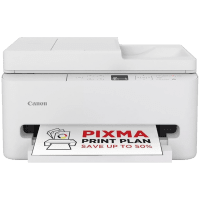
Canon TS7550i User Manual
 | PDF manual |  | 395 pages |  | English |
Brief Summary:
-
Main Components: The printer features a front cassette for paper loading, a scanning platen for photos and documents, and an Auto Document Feeder (ADF) for multi-page scanning.
-
FINE Cartridges: This model uses two FINE cartridges; the color cartridge must be installed in the left slot and the black cartridge in the right slot.
-
Loading Paper: Paper should always be loaded in portrait orientation with the print side facing DOWN in the front cassette.
-
Paper Alignment: Adjust the paper guides to the edges of the stack without sliding them too tightly to ensure smooth feeding and prevent jams.
-
Safe Powering Off: Always use the ON button to turn off the printer before unplugging it; this ensures the print head is capped and prevents it from drying or clogging.
-
Standard Maintenance: If print quality drops (streaks or missing lines), perform a “Cleaning” from the Maintenance menu on the HOME screen.
-
Deep Cleaning: If two standard cleanings do not resolve quality issues, a “Deep Cleaning” is available but consumes more ink.
-
LCD Status Indicators: The LCD screen displays ink levels and error codes (Support Codes) to help diagnose and fix issues.
-
Transport Precautions: When moving the printer, keep the FINE cartridges installed and ensure the printer remains level to prevent ink leaks.
-
Cleaning the Feeders: If paper does not feed properly, use the “Roller Cleaning” function to remove paper dust from the rollers.
Questions and Answers: Common Errors
-
Q: What does support code 1003 mean and how do I fix it? A: This error indicates that there is no paper in the cassette or that the paper has not been loaded correctly. Make sure to load the paper correctly, adjust the guides, and press OK on the printer.
-
Q: Why does my printout have white lines or blurry colors? A: This usually occurs when the print head nozzles are clogged. It is recommended to print a nozzle check pattern and perform a head cleaning if the pattern is incomplete.
-
Q: What should I do if code 1401 appears? A: This code means that the printer does not recognize the FINE cartridge because it is not installed or is not compatible. Check that the cartridge is inserted correctly and that the locking cover is closed properly until it clicks.
-
Q: How do I resolve a paper jam (Code 1300)? A: If paper is jammed inside the printer, open the scanning unit and remove the paper slowly with both hands. If it is jammed in the back, remove the transport unit to take out the paper.
-
Q: Why does error 2110 appear when trying to print? A: This error indicates a discrepancy between the paper size loaded in the cassette and the print settings sent from the computer. Ensure both settings match to resume printing.
-
Q: What does it mean if the support code is 1688? A: It indicates that the cartridge has completely run out of ink. You must replace the FINE cartridge with a new one to continue printing or scanning.
-
Q: Why won’t the printer turn on? A: Verify that the power cord is securely connected to both the printer and the power outlet. If the problem persists, try disconnecting and reconnecting the cable before pressing the ON button.