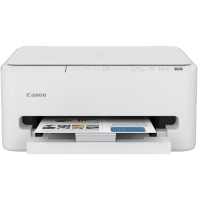
Canon TS4150i User Manual
 | PDF manual |  | 353 pages |  | English |
Brief Summary:
-
Main Components: The printer includes a front cassette for loading paper, a scanning unit/cover for originals, and an operation panel with LED status lamps.
-
Cartridge Installation: The system uses two FINE cartridges; the color cartridge must be installed in the left slot and the black cartridge in the right slot.
-
Loading Paper: Always load paper in portrait orientation with the print side facing down in the cassette to avoid feed errors or jams.
-
Paper Guides: Align the paper guides exactly to the edges of the stack; sliding them too tightly or leaving them too loose can cause paper feed issues.
-
Powering Off: Always turn the printer off using the ON button before unplugging; this ensures the print head is capped to prevent drying or clogging.
-
Standard Cleaning: You can clear clogged nozzles by holding the Stop button until the Alarm lamp flashes twice, then releasing it to start head cleaning.
-
Deep Cleaning: If print quality does not improve after two standard cleanings, a deep cleaning can be performed by holding the Stop button until the Alarm lamp flashes 3 times.
-
Paper Setting Mismatch: The printer detects if the loaded paper size matches the print command; if they differ, the Alarm lamp will flash to prevent incorrect printing.
-
Transporting the Device: When moving the printer, leave the cartridges installed to keep the head capped and secure the carriage with tape to prevent internal damage.
-
Safety Precautions: Do not touch the electrical contacts or print head nozzles on the FINE cartridges, as this can lead to printing failures or damage.
Common Troubleshooting: Q&A
Q: Why is my printer not picking up paper or showing a “No Paper” error (Support Code 1003)? A: This usually means the cassette is empty or the paper is not loaded correctly. Ensure the paper is pushed to the back of the cassette and the guides are aligned, then press the Black or Color button to resume.
Q: What should I do if the printed output is blurry, missing lines, or has streaks? A: This is often caused by clogged nozzles. Print a nozzle check pattern to identify the issue and perform a print head cleaning if the pattern is broken or faint.
Q: Why does the Alarm lamp flash when I try to print (Support Code 2110)? A: This occurs when the paper size set in your computer’s printer driver does not match the paper size registered on the printer’s operation panel. You must match these settings to continue.
Q: How do I clear a paper jam (Support Code 1300)? A: If paper is jammed inside the printer, open the scanning unit/cover and pull the paper out slowly with both hands. If it is jammed at the rear, detach the transport unit or rear cover to remove it.
Q: Why won’t the printer recognize my ink cartridge (Support Code 1401)? A: This code indicates the cartridge is not installed or is installed incorrectly. Remove the FINE cartridge and reinstall it, pushing the locking cover until it clicks firmly into place.
Q: Can I continue printing if one ink cartridge is empty (Support Code 1688)? A: On Windows, you can temporarily continue printing with only the remaining ink (black or color) by adjusting the “Print With” setting in the printer driver’s maintenance tool.
Q: What does it mean if the Alarm lamp flashes 3 times during a maintenance task? A: The number of flashes indicates the specific maintenance function being triggered; 3 flashes while holding the Stop button initiates a “Deep Cleaning” of the print head.