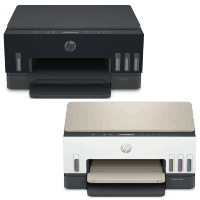
HP Smart Tank 6003 Printer Manual
 | PDF manual |  | 103 pages |  | English |
Brief summary:
The HP Smart Tank 6000 series manual explains how to set up, connect, print, copy, scan, manage ink and printheads, maintain the printer, and troubleshoot common problems. It also covers Wi-Fi, HP Smart, paper handling, print quality, and printer error codes.
-
Printing
Print documents and photos from Windows, Mac, and mobile devices. Wi-Fi Direct allows printing without connecting to the same Wi-Fi network. -
Copying
Copy originals using the scanner glass and, on applicable models, copy documents through the document feeder. -
Scanning
Scan using HP Smart, HP printer software, a computer, or Webscan. Scan settings and shortcuts can also be customized. -
HP Smart App
HP Smart helps users print, scan, manage the printer, receive alerts, and access troubleshooting assistance. -
Wireless and Network Connections
The printer supports Wi-Fi setup through HP Smart, a router, printer software, or WPS. Some models also support Ethernet and USB connections. -
Paper Handling
The printer supports standard paper, legal paper, envelopes, cards, and photo paper. Correct paper loading and paper settings help prevent feeding and printing problems. -
Ink Management
Check ink levels regularly and refill the tanks when they are low. Printing with very low ink can damage the printer. -
Printhead Care
Printheads must be installed correctly and kept clean. Alignment and cleaning procedures can improve print quality. -
Printer Maintenance
Maintenance includes cleaning the printer, scanner glass, document feeder areas, paper rollers, and printhead contacts when necessary. -
Troubleshooting
The manual covers paper jams, paper-feed problems, printhead errors, print-quality issues, copying and scanning problems, network problems, Wi-Fi Direct, Ethernet, and printer error codes.
Common User Problems and Solutions
Printer does not pick up paper
-
Make sure paper is loaded correctly.
-
Adjust the paper-width guides without bending the paper.
-
Make sure the paper is flat and not curled.
-
Clean the paper rollers if necessary.
Paper jams frequently
-
Remove the jammed paper carefully.
-
Check the tray, ink access area, rear door, and document feeder.
-
Do not overload the input tray.
-
Use the same paper size and type throughout the stack.
Pages are crooked or skewed -
Align the paper correctly with the guides.
-
Do not load paper while printing.
-
Make sure the rear access door is properly closed.
Printer picks up multiple sheets
-
Do not overload the tray.
-
Separate sheets that are sticking together.
-
Adjust the paper guides correctly.
-
Clean the paper rollers.
Print quality is poor
-
Check the ink levels.
-
Print a print-quality diagnostics page.
-
Align or clean the printheads.
-
Check that the correct paper type is being used.
Printhead error appears
-
Verify that both printheads are installed correctly.
-
Remove any remaining orange plugs or protective tape.
-
Make sure the correct HP printheads are installed.
Ink warning or E7 error
-
One or more ink tanks are low or empty.
-
Refill the indicated ink tank before continuing to print.
Wi-Fi connection does not work
-
Check the Wi-Fi light and connection status.
-
Reconnect the printer using HP Smart, WPS, or the printer software.
-
Network settings can also be restored if necessary.
E1/E2 paper error
-
The paper size or length does not match the print job.
-
Load the correct paper size or change the paper settings in the application.
-
Print the document again.
Printer shows E5 or E6 error
-
For E5, restart the printer if the scanner is not working.
-
For E6, turn the printer off, unplug it for about one minute, reconnect it, and restart it.
-
Contact HP if the problem continues.