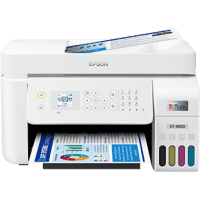
Epson ET-4800 Printer Manual
 | PDF manual |  | 285 pages |  | English |
Brief summary:
-
Setup includes filling EcoTank ink bottles and connecting via Wi-Fi, USB, or mobile apps.
-
Use genuine Epson ink bottles to avoid print damage and warranty issues.
-
Rear paper feeder supports plain paper, envelopes, and photo paper; load paper short-edge first.
-
Paper type and size must be selected to avoid printing errors and wasted ink.
-
Print, copy, and scan functions included; fax and ADF features only available on specific models (ET-4800/L5310/L5290).
-
Use Epson ScanSmart for advanced scanning and saving to computer or cloud.
-
Regular maintenance includes print-head cleaning, nozzle check, and alignment.
-
Ink waste pad warnings require service — user cannot replace the maintenance pad.
-
Wi-Fi Direct and network setup supported; admin password control for security.
-
Recommended environmental conditions: 10–35°C, 20–80% humidity for proper operation.
Common user issues and solutions (English)
The printer won’t print
-
Check Wi-Fi/USB connection and ensure correct printer is selected.
-
Restart printer and computer.
Poor print quality
-
Run nozzle check and print-head cleaning.
-
Confirm correct paper type settings and genuine ink usage.
Paper jam
-
Turn off printer, remove jammed paper from feeder and output area, reload sheets properly.
Printer displays ink pad error
-
Contact Epson support; pad replacement is not user-serviceable.
Paper not feeding
-
Fan paper, do not exceed tray limit, adjust edge guides, avoid curled/damp paper.
Scanner not working
-
Restart the device and ensure scanner software (Epson ScanSmart) is installed properly.
Wi-Fi connection issues
-
Reconnect through printer network setup menu or use Wi-Fi Direct for temporary connection.