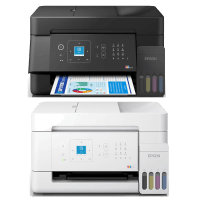
Epson ET-4900 Printer Manual
 | PDF manual |  | 268 pages |  | English |
Brief summary:
- This printer series supports printing, copying, scanning, and faxing depending on the specific model, making it suitable for home offices and small businesses
- The printers use an EcoTank refillable ink system, designed for high-volume printing with lower cost per page
- Users should always use genuine Epson ink bottles to maintain print quality and avoid printer damage
- The printers support multiple connection types:
- USB
- Wi-Fi
- Wi-Fi Direct
- Ethernet (on supported models)
- Mobile printing is supported through:
- AirPrint
- Epson Smart Panel
- Mopria
- Epson Connect
- Advanced features include:
- Manual duplex printing
- Borderless printing
- Poster printing
- Multi-page layouts
- Header and footer printing
- Fax functions on selected models
- The printer can generate a Network Connection Report to diagnose Wi-Fi and network issues
- Wi-Fi setup can be configured using:
- WPS Push Button
- WPS PIN Code
- Easy Connect App
- Manual SSID setup
- The printer supports Wi-Fi Direct mode, allowing direct connection without a router
- Regular maintenance includes:
- Print head cleaning
- Nozzle checks
- Maintenance box replacement
- Cleaning scanner glass and ADF
- Cleaning spilled ink
- The printer uses a maintenance box to collect excess ink from cleaning cycles and it must be replaced when full
- Several LCD error codes help diagnose problems such as:
- Paper jams
- Ink pad full
- Wi-Fi setup errors
- Firmware recovery mode
- Scanner errors
- Firmware recovery mode requires a USB connection to reinstall firmware if an update fails
- Borderless printing may stop if the borderless ink pad reaches its limit, but standard printing can continue
- Safe ink handling is important because low ink levels for long periods may damage the print head
Frequently Asked Questions (FAQ) — Common User Problems
Q: My printer does not print at all. What should I do
- Check if the printer is powered on
- Verify paper is loaded
- Confirm ink levels are above the minimum line
- Check USB or Wi-Fi connection
- Restart the printer and computer
Q: The printer says paper jam but I cannot find paper
- Turn the printer off and on again
- Load A4 or Letter paper into the rear feeder
- Let the printer attempt internal paper removal
- Check for small paper fragments inside
Q: Print quality is poor or colors are missing
- Run a nozzle check
- Perform print head cleaning
- Refill ink if levels are low
- Use the correct paper type settings
Q: The Wi-Fi connection failed
- Print the network connection report
- Retry WPS setup
- Use Wi-Fi Direct as an alternative
- Reset network settings if necessary
Q: The printer entered Recovery Mode after a firmware update
- Connect the printer to a computer with USB
- Download the latest firmware
- Retry the update manually
- Do not use network update during recovery mode
Q: The maintenance box warning appears
- The maintenance box is nearly full or full
- Replace it as soon as possible
- Some cleaning functions may stop working if ignored
Q: Borderless printing stopped working
- The borderless ink pad may be full
- Standard printing is still available
- Service replacement is required for the pad
Q: Mobile devices cannot find the printer
- Ensure both devices are connected to the same network
- Try Wi-Fi Direct
- Reopen the Epson Smart Panel app
- Reboot the printer and phone
Q: Scanner quality is poor
- Clean the scanner glass
- Clean the ADF if used
- Avoid scratches or dust on the glass surface
Q: Ink spilled during refill
- Clean immediately using a lint-free cloth
- Wash hands with soap and water if ink contacts skin
- Avoid shaking or squeezing ink bottles too hard