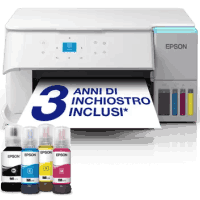
Epson ET-2959 Printer Manual
 | PDF manual |  | 198 pages |  | English |
Brief summary:
- The manual explains how to use the printer for printing, copying, scanning, maintenance, and troubleshooting.
- It includes essential safety instructions for handling electricity, ink, and proper device use.
- The printer supports multiple connection types such as USB, Wi-Fi, and Wi-Fi Direct.
- Users can print from computers, mobile devices, and cloud services.
- It offers various copy features including duplex, resizing, ID copy, and multi-page layouts.
- The scanning function allows saving documents in different formats and resolutions depending on the purpose.
- Proper paper handling is important to avoid jams and ensure good print quality.
- Maintenance tasks include checking ink levels, cleaning print heads, and aligning the printer.
- The control panel allows navigation through menus, settings, and quick troubleshooting options.
- A detailed troubleshooting section helps solve issues like connection errors, paper jams, and poor print quality.
Q&A – Common User Problems
Q1: Why is my printer not printing?
A: It may be due to connection issues, incorrect driver installation, or the printer being offline.
Q2: Why is the print quality poor or blurry?
A: This is usually caused by clogged print heads, wrong paper type settings, or low ink levels.
Q3: Why does paper keep jamming?
A: Paper jams often happen بسبب incorrect loading, curled paper, or exceeding the paper capacity.
Q4: Why can’t I connect the printer to Wi-Fi?
A: The network settings may be incorrect, the signal may be weak, or the password may be wrong.
Q5: Why is the printer showing low ink after refilling?
A: The ink level may need to be manually reset in the printer settings.
Q6: Why is scanning not working?
A: This can happen if the scanner software is not installed correctly or the device is not connected.
Q7: Why is the printer slow?
A: Printing in high quality mode, using certain paper types, or enabling quiet mode can reduce speed.