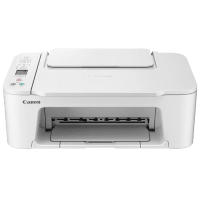
Canon TS3751i Printer Manual
 | PDF manual |  | 445 pages |  | English |
Brief Summary:
-
Using the Manual
- Online guide for printer setup, troubleshooting, and maintenance.
- Symbols indicate warnings, cautions, and important notes.
-
Network & Connectivity
- Printing via iOS (AirPrint) and other wireless methods.
- Setting up and troubleshooting network connections.
- Switching between USB and LAN connections.
- Wi-Fi configuration and direct wireless printing.
-
Printer Setup & Settings
- Installing and updating MP drivers.
- Default network and printer settings.
- Connecting the printer to different devices.
-
Printing & Copying
- Printing from Windows, macOS, and mobile devices.
- Various printing methods, including duplex and borderless printing.
- Adjusting print quality and paper settings.
- Copying documents on plain and photo paper.
-
Scanning
- Using Scan Utility for Windows and macOS.
- Auto scanning and advanced scanning settings.
- Creating and editing PDFs.
-
Ink & Maintenance
- Checking ink status and replacing FINE cartridges.
- Cleaning and aligning the print head.
- Performing maintenance from a computer.
-
Troubleshooting & Errors
- Diagnosing and fixing printing and scanning issues.
- Resolving network and USB connection problems.
- Addressing paper jams and print quality problems.
- Error messages and support codes.
-
Safety & Handling
- Printer safety precautions and regulatory information.
- Transporting and storing the printer.
- Legal restrictions on scanning and copying.
Questions and Answers – Common Problems
Why is the printer not printing?
This is usually caused by Wi-Fi/USB connection problems, missing paper, empty ink cartridges, or improperly installed drivers.
What should I do if the printer cannot be found on the Wi-Fi network?
Restart the router, verify the Wi-Fi password, and reconfigure the wireless connection.
Why are lines or incorrect colors appearing in prints?
The print nozzles may be clogged or the printheads misaligned.
What does the “No Paper” error mean?
The paper tray may be empty, paper may be loaded incorrectly, or the rollers may be dirty.
How do I fix a paper jam?
Carefully pull the paper out in the output direction without tearing it.