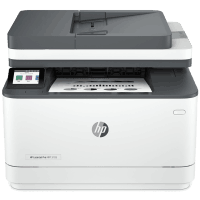
HP LaserJet Pro MFP 3105sdw Printer Manual
 | PDF manual |  | 173 pages |  | English |
Brief summary:
This user guide explains how to set up, connect, operate, maintain, and troubleshoot the HP LaserJet Pro MFP 3101–3108 series. It covers printing, copying, scanning, faxing, mobile printing, network connections, toner management, paper handling, and common printer problems.
- Printing: The printer supports printing from Windows, Mac, and mobile devices. Mobile printing can use the same Wi-Fi network or Wi-Fi Direct.
- Copying: Users can copy documents, ID cards, and photos directly from the printer control panel.
- Scanning: Documents and photos can be scanned to a computer, USB flash drive, email, network folder, or other supported destinations.
- Faxing: The manual explains fax setup, sending and receiving faxes, fax testing, and troubleshooting common fax connection problems.
- Connectivity: The printer can connect through Wi-Fi, Ethernet, USB, and Wi-Fi Direct. Wireless settings can be changed through the control panel or HP software.
- HP Smart: The HP Smart app can be used to print, scan, and manage the printer from supported devices.
- Paper Handling: The manual explains how to load paper, envelopes, and labels and how to load originals on the scanner glass or document feeder.
- Toner Management: The control panel displays estimated toner levels. Low-toner alerts are estimates and the cartridge does not necessarily need immediate replacement.
- Maintenance: Print-quality problems can be addressed by checking the toner cartridge, using the correct paper type, printing a cleaning page, and checking the printer environment.
- Troubleshooting: The guide provides detailed solutions for toner issues, paper misfeeds, paper jams, print-quality defects, fax problems, wireless connectivity, and Ethernet connection problems.
Common User Problems and Solutions
Why is the printer not picking up paper?
Check that the correct paper size and type are selected and that the paper is loaded correctly in the tray. The manual also provides steps for multiple-sheet and crossed-paper pickup problems.
What should I do if there is a paper jam?
Paper jams can occur in the input tray, cartridge access area, document feeder, or rear access area. Remove the jammed paper carefully using both hands when necessary to avoid tearing it.
Why are my prints light or faded?
Reprint the document, remove and gently shake the toner cartridge to redistribute toner, verify that the cartridge is installed correctly, and check the toner level. Replace the cartridge if necessary.
Why is the printed page too dark or has a gray background?
Try different paper, make sure the paper has not already been printed on, check the printer environment, and adjust toner density if applicable. The toner cartridge may also need replacement.
Why does the printer produce a completely blank page?
Make sure the toner cartridge is genuine HP and installed correctly. Try another cartridge and verify that the paper type setting matches the paper loaded in the tray.
Why do I see streaks or repeated marks on my prints?
Toner, paper, or dust can accumulate inside the printer. Print a cleaning page, check the toner level, and inspect or replace the toner cartridge if necessary.
Why is the printed image crooked or not centered?
Reload the paper and make sure all edges are even. Do not overfill the tray and adjust the paper guides correctly without pressing them too tightly against the paper stack.
Why does toner rub off the paper?
Check that the selected paper type matches the paper in the tray. For poor fusing, the manual recommends trying a heavier paper type when appropriate.
Why is the wireless printer not printing?
Check the wireless connection, network configuration, and whether the printer is connected to the correct network. The manual also provides a wireless network diagnostic test and solutions for interference, VPNs, firewalls, and router changes.
Why are fax messages failing to send or receive?
Run the fax test from the printer control panel and check the telephone wall connection, phone cord, fax port, dial tone, and fax line condition. The manual provides separate troubleshooting steps depending on which fax test fails.