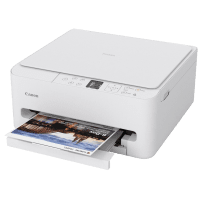
Canon TS6550i User Manual
 | PDF manual |  | 388 pages |  | English |
Brief Summary:
-
Safety Warnings: Follow all safety instructions to avoid serious injury, property damage, or death from incorrect operation.
-
Proper Power-Off: Always press the “ON” button and wait for the lamp to turn off before unplugging to prevent the print head from drying or clogging.
-
Paper Loading: Load paper in the cassette in portrait orientation only; landscape orientation will cause paper jams.
-
Media Settings: Register the correct paper size and media type on the LCD after loading to ensure the printer uses the appropriate settings for the job.
-
Ink Handling: Keep ink away from children; if swallowed or if it contacts eyes/skin, rinse immediately and seek medical advice if needed.
-
FINE Cartridge Care: Do not touch the electrical contacts or print head nozzles on new cartridges to avoid printing failures.
-
Maintenance Tools: Use the Canon IJ Printer Assistant Tool (Windows) or Remote UI (macOS) for head cleaning and alignment.
-
Scanning Precautions: It is illegal to scan or copy certain items like paper money, passports, and copyrighted works without consent.
-
Safe Transporting: When moving the printer, leave cartridges installed, turn it off with the ON button, and pack it level in a plastic bag.
-
Data Privacy: Before repairing or disposing of the printer, use the “Reset settings” function to delete personal data and network configurations.
Q: What should I do if the paper jams? A: Cancel the print job, turn off the printer, and carefully remove the paper. Ensure you do not load paper in landscape orientation.
Q: The light is flashing and an error code (e.g., 5100) appears. What does it mean? A: This indicates a hardware error. Check for protective materials or jammed paper obstructing the FINE cartridge holder.
Q: Why is the print quality poor or colors are missing? A: The print head nozzles might be clogged. Perform a head cleaning from the maintenance menu.