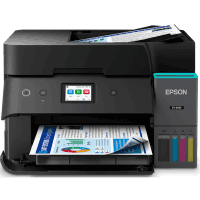
Epson ET-4955 Printer Manual
 | PDF manual |  | 268 pages |  | English |
Brief summary:
- The manual provides detailed instructions for printing, copying, scanning, faxing, maintenance, and troubleshooting.
- It includes safety guidelines for proper use of the printer, ink handling, and electrical precautions.
- The printer supports multiple connection types including USB, LAN, Wi-Fi, and Wi-Fi Direct.
- Users can perform tasks directly from the control panel, including copy, scan, fax, and maintenance operations.
- The device includes an Automatic Document Feeder (ADF) for handling multiple pages efficiently.
- Maintenance features include nozzle check, print head cleaning, alignment, and ink system flushing.
- The printer tracks usage data such as print counts and provides status reports.
- Paper handling must follow specific guidelines to avoid jams, misfeeds, or skewed printing.
- The system allows firmware updates and resetting settings to default when needed.
- The troubleshooting section addresses common issues such as printing failures, connection problems, and hardware errors.
Q&A – Common User Problems
Q1: Why can’t I print, scan, or fax?
A: Check if the printer is powered on, properly connected, and not showing errors on the screen.
Q2: Why is there a paper jam?
A: Paper may be loaded incorrectly, damaged, or exceeding the tray capacity.
Q3: Why is the print quality poor?
A: Perform nozzle check, clean the print head, or align it.
Q4: Why won’t the printer connect to the network?
A: Verify Wi-Fi settings, cables, and ensure both devices are on the same network.
Q5: Why is paper feeding incorrectly?
A: Check paper type, alignment, and ensure rollers are clean.
Q6: Why is the printer slow?
A: High-quality or quiet mode settings can reduce speed.
Q7: Why does the ink level not update?
A: Ink levels may need to be reset manually after refilling.
Q8: Why is the LCD showing an error message?
A: Follow the instructions displayed and check printer status reports.
Q9: Why can’t I send or receive faxes?
A: Check fax settings, connection, and authentication credentials.
Q10: Why is the printer not working as expected?
A: Reset settings, update firmware, or run maintenance checks.