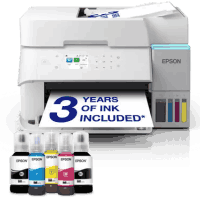
Epson ET-3956 Printer Manual
 | PDF manual |  | 215 pages |  | English |
Brief summary:
- The manual provides complete guidance for printer setup, usage, and troubleshooting.
- The printer supports printing, scanning, and copying with multiple configuration options.
- It supports USB and wireless connectivity including Wi-Fi and Wi-Fi Direct.
- Users can print from computers, mobile devices, and cloud services.
- The control panel allows navigation of menus, monitoring printer status, and accessing maintenance tools.
- Proper paper handling is important to prevent jams and maintain print quality.
- The printer requires regular maintenance, such as cleaning print heads and checking ink levels.
- Only genuine Epson ink and supplies are recommended to ensure reliable operation.
- Security features include an administrator password to protect settings and personal information.
- The manual provides guidance for troubleshooting common errors, updating firmware, and optimizing printer performance.
Q&A – Common User Problems
Q1: Why is my printer not printing?
A: Check the connection, make sure the printer is on, and confirm the correct printer is selected.
Q2: Why is print quality poor or smudged?
A: Clean the print head, use recommended paper, and ensure ink levels are sufficient.
Q3: Why does paper keep jamming?
A: Verify proper paper loading, avoid damaged or curled sheets, and do not overload trays.
Q4: Why won’t the printer connect to Wi-Fi?
A: Confirm network settings, signal strength, and that the correct password is entered.
Q5: Why doesn’t the ink level display update after refilling?
A: Reset the ink level in the printer settings if necessary.
Q6: Why can’t I scan to my computer or cloud?
A: Check that the scanning software is installed correctly and the device is connected.
Q7: Why is the printer slower than expected?
A: High-quality or duplex printing may reduce speed; Quiet Mode also slows down operations.
Q8: Why is the LCD screen dark or unresponsive?
A: Ensure the printer is powered on correctly, and check for any physical damage or firmware updates.
Q9: Why do operations fail after changing network settings?
A: Re-check network configuration, restart the printer, and ensure the administrator password is correct.
Q10: How do I safely transport or store the printer?
A: Keep it upright, avoid tilting, and secure the print head in the home position before moving.