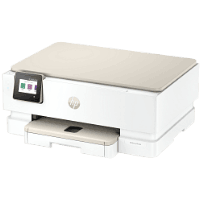
HP Envy Photo 7975 Printer Manual
 | PDF manual |  | 94 pages |  | English |
Brief summary:
- All-in-one printer: supports printing, scanning, copying, and mobile fax features.
- Touchscreen control panel allows easy navigation, settings, and troubleshooting.
- Wireless connectivity (Wi-Fi, Wi-Fi Direct) plus USB support for flexible use.
- Compatible with HP app for setup, printing, scanning, and printer management.
- Supports mobile printing from smartphones and tablets via apps or network connection.
- Uses HP ink cartridges; maintaining cartridges is essential for print quality.
- Paper handling includes main tray and photo tray with multiple media types supported.
- Maintenance functions include printhead cleaning, alignment, and firmware updates.
- Built-in diagnostic reports help identify print quality and network issues.
- Troubleshooting section covers paper jams, connectivity, print quality, and hardware errors.
Common User Problems & Solutions
The printer is not printing
Make sure the printer is turned on, connected to the network or USB, and selected as the default printer. Check for error messages and restart both printer and device.
Poor print quality (streaks, faded colors)
Run a printhead cleaning and alignment. Check ink levels and ensure original cartridges are installed.
Paper jam inside the printer
Turn off the printer and carefully remove jammed paper from trays or internal areas. Avoid using sharp objects.
Paper is not feeding correctly
Ensure paper is properly loaded, not curled, and that guides are aligned. Do not overload the tray.
Printer shows offline status
Check Wi-Fi connection and ensure the printer and device are on the same network. Reset connection if needed.
Wi-Fi connection issues
Restart the router and printer, verify SSID/password, and reconnect using the HP app or control panel.
Printer turns off unexpectedly
Check power cable and outlet. Reconnect and restart the printer.
Scanner or copy not working properly
Clean the scanner glass and ensure correct settings in the HP app or software.
Ink cartridge not recognized
Remove and reinstall the cartridge, clean contacts if necessary, and use original HP cartridges.
Error messages on screen
Follow on-screen instructions. If the issue persists, restart the printer or check diagnostic reports.