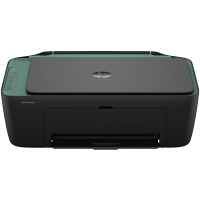
HP DeskJet 2923 Printer Manual
 | PDF manual |  | 76 pages |  | English |
Brief summary:
-
Multi-Function Capability: These All-in-One printers are designed to print, scan, and copy documents from computers and mobile devices.
-
HP App Integration: Users are encouraged to install the HP app on iOS, Android, Windows, or macOS to set up the printer, manage settings, and order supplies.
-
Connectivity Options: The series supports Wi-Fi networks, Wi-Fi Direct for local wireless printing without a router, and standard USB connections.
-
Control Panel Interface: Features include a display for copy counts and status icons, along with dedicated buttons for Power, Cancel, Resume, Wi-Fi, Information, and Color/Black Copy.
-
Paper Handling: The device includes an input tray for paper and envelopes, a scanner glass for originals, and select models feature an automatic document feeder (ADF).
-
Cartridge System: It utilizes two cartridges (Black and Tri-color) and supports a “single-cartridge mode” allowing operation if one cartridge is removed or empty.
-
Dynamic Security: The printer uses dynamic security measures to block cartridges using non-HP chips or electronic circuitry to protect the quality of the printing experience.
-
Embedded Web Server (EWS): Users can access advanced settings and network configurations by entering the printer’s IP address into a web browser.
-
Maintenance Procedures: The manual provides instructions for aligning printheads, cleaning cartridges to fix print quality issues, and cleaning the scanner glass.
-
Eco-Friendly Features: Includes “Quiet Mode” to reduce noise during printing and “Auto-Off” technology to save energy during periods of inactivity.
Questions and Answers: Common User Problems
What does it mean when the display shows “E” and a number? This indicates the printer is in an error state. For example, “E0” typically points to a cartridge problem, while “E1” or “E2” usually indicates a paper size mismatch or paper-related issue.
How do I fix a paper jam? You should gently pull the jammed paper out with both hands from the input tray, output tray, or cartridge access area. For persistent jams, some models have a bottom access door that can be opened by pressing two tabs on the underside of the printer.
Why is my printer not connecting to Wi-Fi? Ensure the router is on and the printer is within range. If the Wi-Fi light is blinking, you can press the Wi-Fi and Information buttons simultaneously to print a network test report for specific diagnostic details.
What should I do if the print quality is poor or colors are missing? This often means the printhead nozzles are clogged. You can use the HP software or the Embedded Web Server (EWS) to run an automated cleaning and alignment process for the cartridges.
Can I print if one cartridge is empty? Yes, the printer supports “single-cartridge mode.” If you remove the empty cartridge, the printer will continue to operate using only the remaining black or tri-color cartridge.
How do I find my printer’s Wi-Fi Direct password? You can print a Wi-Fi Direct guide by pressing the Information button. This page will list the specific Wi-Fi Direct name and the password required to connect your mobile device directly to the printer.
Why did my printer shut down unexpectedly? Check the power connections to ensure the cord is firmly plugged in. Also, note that the “Auto-Off” feature may be enabled, which automatically shuts down the printer after a period of inactivity to save energy.