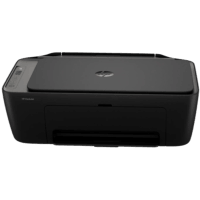
HP DeskJet 2921 Printer Manual
 | PDF manual |  | 76 pages |  | English |
Brief summary:
- The HP DeskJet All-in-One series supports printing, scanning, copying, and mobile fax from computers and mobile devices.
- It can be connected via Wi-Fi, Wi-Fi Direct, WPS, or USB, with setup mainly done through the HP app.
- The control panel uses buttons, lights, and icons to show printer status, errors, Wi-Fi connection, and ink levels.
- Users can manage settings through the HP app or the Embedded Web Server (EWS) using a browser and the printer’s IP address.
- The printer supports different media types like plain paper, envelopes, and photo paper, with correct loading required to avoid issues.
- Printing is available from Windows, Mac, and mobile devices, including AirPrint and HP Print Service Plugin.
- The device includes features for copying, scanning, and mobile faxing, including scanning via camera using the HP app.
- Ink cartridges must be properly installed and preferably original HP, with monitoring of ink levels recommended.
- The printer includes error codes and indicator lights to help diagnose problems like paper jams, ink issues, or connection errors.
- Regular maintenance and updates (firmware, cleaning, alignment) help ensure optimal performance and print quality.
Common User Problems – Q&A
1. Why is my printer not connecting to Wi-Fi?
Answer:
Make sure Wi-Fi is turned on, the printer is in setup mode (blinking blue light), and both the printer and device are on the same network. Reset network settings if needed.
2. What should I do if there is a paper jam?
Answer:
Turn off the printer, check all paper paths (input tray, output tray, cartridge area), and carefully remove any stuck paper using both hands.
3. Why is my printer showing an error code (E0–E9)?
Answer:
Each code indicates a specific issue, such as cartridge problems (E0), paper mismatch (E1/E2), jams (E4), or system errors. Restarting the printer or fixing the indicated issue usually resolves it.
4. My printer says ink is low or not detected. What can I do?
Answer:
Check if cartridges are installed correctly, remove any protective tape, and ensure they are compatible. Replace them if empty or damaged.
5. Why is my print quality poor?
Answer:
Run cartridge alignment and cleaning, check ink levels, and ensure you’re using appropriate paper.
6. Can I print from my phone?
Answer:
Yes. Use the HP app, AirPrint (iOS), or HP Print Service Plugin (Android), ensuring both devices are connected to the same network or via Wi-Fi Direct.
7. How do I find the printer password or PIN?
Answer:
It’s located on a label inside the printer (near the cartridge area). You can also change it through the EWS.