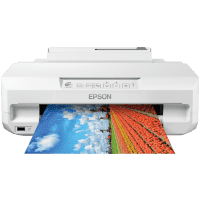
Epson XP-65 Printer Manual
 | PDF manual |  | 167 pages |  | English |
Brief summary:
-
Safety Precautions: Use only the specified power cord and avoid disassembling ink cartridges to prevent electrical hazards or chemical exposure.
-
Paper Feed System: The printer includes a rear paper feed for special media and two front cassettes for standard document and photo paper.
-
CD/DVD Printing: You can print labels directly onto printable discs using the dedicated tray located beneath the second paper cassette.
-
Control Panel Navigation: Operations are managed through physical buttons and LED status lights that indicate connectivity, ink levels, and errors.
-
Network Connectivity: The device supports standard Wi-Fi, Wi-Fi Direct for peer-to-peer mobile connection, and high-speed USB for direct computer links.
-
Mobile Printing Solutions: Epson Connect services allow for remote printing via email or dedicated smartphone applications.
-
Ink Management: Monitor ink levels through the computer software to ensure cartridges are replaced before they are completely empty to protect the print head.
-
Maintenance Utilities: Regular use of the Nozzle Check and Head Cleaning functions is required to resolve issues with horizontal banding or missing colors.
-
Consumable Quality: Epson recommends using genuine ink to maintain print longevity and ensure the mechanical reliability of the printer.
-
Energy Management: The printer features an adjustable auto-power-off timer and a sleep mode to minimize electricity usage when idle.
Common User Errors and Solutions
Why are my printed pages coming out blank or with missing colors? This typically happens when the print head nozzles are clogged due to inactivity. You should perform a nozzle check from the maintenance menu and clean the print head if the pattern is incomplete.
What is the correct way to clear a paper jam? Users often pull paper forcefully, which can damage internal gears. Carefully remove the stuck paper through the rear cover or the output tray following the path of the paper. Avoid touching the translucent internal film.
Why does my computer say the printer is offline even when it is turned on? This is often a communication error between the router and the device. Restart both the printer and the router, and check that the printer is set as the active device in your computer’s “Devices and Printers” settings.
The printer is not recognizing a newly installed ink cartridge. This usually occurs if the cartridge was not pushed down until it clicked or if the yellow protective tape was not removed. Re-insert the cartridge firmly and ensure all packaging materials are gone.
Why is the print quality poor when using non-Epson paper? Printer settings must match the specific paper type. If you are using third-party paper, you must manually adjust the “Paper Type” setting in the print driver to “Glossy” or “Matte” to control the ink volume correctly.