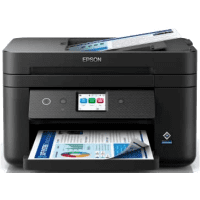
Epson WF-2960DWF Printer Manual
 | PDF manual |  | 246 pages |  | English |
Brief summary:
1. General Description
-
The Epson WF-2960DWF is an all-in-one inkjet printer designed for small offices and home use.
-
It supports printing, copying, scanning, and faxing in a single device.
-
It offers wireless, Ethernet, USB, and Wi-Fi Direct connectivity.
-
Automatic double-sided printing and an Automatic Document Feeder (ADF) are included.
2. Main Functions
-
Printing from Windows, macOS, smartphones, tablets, and cloud services.
-
Copying in color or black and white, including double-sided copies.
-
Scanning documents to a computer, cloud services, or smart devices in PDF or JPEG format.
-
Sending and receiving faxes directly from the printer or from a computer.
-
Multi-page scanning and copying using the ADF
3. Paper Handling
-
Supports common paper sizes such as A4, Letter, envelopes, and photo paper.
-
Correct paper size and paper type must be selected on the control panel to avoid printing errors.
-
Certain paper types are not supported, including damaged, very thick, or special media
4. Control Panel
-
Touchscreen interface used to access printer functions.
-
Provides direct access to copy, scan, fax, maintenance, and settings menus.
-
Displays ink levels, maintenance box status, and network connection status.
-
Network icons indicate Wi-Fi, Ethernet, or Wi-Fi Direct connection and signal strength.
5. Maintenance
-
Print head cleaning is required when print quality issues such as lines or missing colors occur.
-
Print head alignment improves blurry or misaligned prints.
-
The maintenance box collects excess ink and must be replaced when prompted.
-
The use of genuine Epson ink cartridges is recommended for optimal performance.
6. Safety and Best Practices
-
Always turn off the printer using the power button before unplugging it.
-
Avoid tilting the printer during transport to prevent ink leakage.
-
Regularly clean the scanner glass and ADF to ensure scan quality.
-
Clear all personal data before disposing of or transferring the printer.
Common Errors & Solutions
1. Printer does not print
Cause: Incorrect connection, offline status, or empty ink cartridges
Solution:
-
Check Wi-Fi/Ethernet connection
-
Make sure the printer is set as default
-
Replace or reseat ink cartridges
2. Paper jams frequently
Cause: Incorrect paper type, overloaded tray, curled paper
Solution:
-
Use supported paper types only
-
Do not overload the paper cassette
-
Fan and straighten paper before loading
3. Poor print quality (lines, faded colors)
Cause: Clogged print head or low ink
Solution:
-
Run a nozzle check
-
Perform print head cleaning
-
Align the print head if necessary
4. Scanner does not work
Cause: Driver issue or incorrect placement of originals
Solution:
-
Reinstall Epson Scan 2
-
Place originals correctly on the glass or ADF
5. Cannot connect to Wi-Fi
Cause: Wrong password or weak signal
Solution:
-
Reconfigure Wi-Fi settings from the control panel
-
Move the printer closer to the router
-
Print a network status report
6. Fax not sending or receiving
Cause: Incorrect phone line connection or settings
Solution:
-
Check LINE port connection
-
Verify fax settings and phone number format