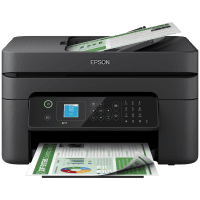
Epson WF-2935DWF Printer Manual
 | PDF manual |  | 245 pages |  | English |
Brief summary:
-
All-in-one inkjet printer: print, copy, scan and fax.
-
Uses Epson ink cartridges; correct installation is required for proper operation.
-
Supports Wi-Fi, Wi-Fi Direct, USB and mobile printing.
-
Compatible with Epson Smart Panel for setup and mobile control.
-
Automatic Document Feeder (ADF) for multi-page copying, scanning and faxing.
-
Rear paper feeder supports plain paper, envelopes and photo paper.
-
LCD control panel for navigation, setup and error messages.
-
Regular maintenance includes nozzle check, head cleaning and alignment.
-
Energy-saving modes and automatic power off supported.
-
Built-in troubleshooting for paper, ink, scanning and network issues.
Common User Problems & Solutions
The printer does not print
Check that the printer is powered on, connected to Wi-Fi or USB, and selected as the default printer. Restart the printer and computer.
Poor print quality or missing colors
Run a nozzle check and print-head cleaning. Make sure the correct paper type is selected and genuine Epson ink is installed.
Paper jam
Turn off the printer, gently remove jammed paper from all access points, and reload paper correctly.
Paper does not feed
Fan the paper, adjust the paper guides, do not overload the tray, and avoid curled or damp paper.
Scanner does not work
Restart the printer, check the connection, and confirm that Epson Scan software is installed.
ADF does not feed documents
Ensure originals are not wrinkled or stapled, clean the ADF rollers, and adjust the guides properly.
Wi-Fi connection problems
Move the printer closer to the router, restart the network, and reconnect using the printer’s setup menu.
Ink cartridge not recognized
Remove and reinstall the cartridge firmly. Use compatible Epson cartridges only.
Fax not sending or receiving
Check the phone line connection, dialing settings and fax configuration.
Printer shows an error message
Follow the on-screen instructions and restart the printer if needed.