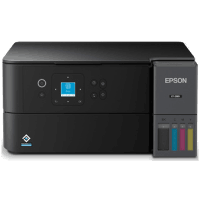
Epson ET-2985 Printer Manual
 | PDF manual |  | 262 pages |  | English |
Brief Summary:
The Epson EcoTank ET-2980 Series User’s Guide explains how to set up, operate, maintain, and troubleshoot the printer. It covers copying, printing, scanning, wireless connectivity, ink refilling, print quality adjustments, and solutions to common errors.
-
Setup and Control Panel: Use the LCD screen and control panel buttons to copy, scan, access settings, and view troubleshooting instructions.
-
Wi-Fi Connection: Connect the printer through the Wi-Fi Setup Wizard, Epson Smart Panel, or WPS. Ensure the correct network name and password are entered.
-
Paper Loading: Load paper into the rear feeder with the printable side facing up. Adjust the edge guides without pressing too tightly against the paper.
-
Copying: Place documents or photos face down on the scanner glass, align them correctly, and select the copy settings from the control panel.
-
Printing: Print from Windows, Mac, smartphones, tablets, and compatible wireless devices. Select the correct paper size, paper type, and print quality.
-
Scanning: Use the control panel, Epson ScanSmart, Epson Scan 2, or a compatible mobile device to scan documents and photos.
-
Ink Refilling: Check ink levels visually and refill tanks before the ink drops below the minimum line. Use the correct ink bottles for the printer.
-
Printhead Maintenance: Run a nozzle check before cleaning the printhead. Use printhead cleaning or alignment when printouts have missing lines, banding, or poor quality.
-
Maintenance Box: Replace the maintenance box when prompted. The printer cannot print or clean the printhead if the box is full.
-
Troubleshooting: Check LCD error messages, paper jams, ink levels, software installation, and network settings. Restart the printer when appropriate and contact Epson Support if errors persist.
Common User Problems and Solutions
Why does the printer not print?
-
Make sure the printer is turned on and has no error messages.
-
Check the paper supply and ink levels.
-
Verify the printer is selected on your computer.
-
Check the USB or Wi-Fi connection and confirm the printer software is installed correctly.
Why is the printer not connecting to Wi-Fi?
-
Confirm the router is turned on and the network name and password are correct.
-
Move the printer closer to the router and remove obstacles.
-
Restart the router and printer.
-
Print a network connection report to identify the problem.
Why does the printer feed paper incorrectly or show a paper jam?
-
Remove jammed paper carefully, following the LCD instructions.
-
Fan and align plain paper before loading.
-
Do not exceed the recommended paper capacity.
-
Adjust the edge guides and flatten curled paper.
Why are printouts blank, faint, or missing lines?
-
Check the ink levels and refill if necessary.
-
Print a nozzle check pattern.
-
Clean the printhead if the pattern shows gaps.
-
If the problem continues, follow the manual’s instructions for additional cleaning or power cleaning.
Why are the printed colors incorrect?
-
Confirm that the correct paper type and print quality settings are selected.
-
Check ink levels.
-
Run a nozzle check and clean the printhead if needed.
-
Perform print quality adjustment if the problem persists.
Why does the printer make noise but produce no copy?
-
Run a printhead nozzle check.
-
Clean the printhead if necessary.
-
Verify that the printer software is installed correctly.
-
Ensure the printer is placed on a level surface.
Why can’t I scan to my computer?
-
Make sure the printer and computer are connected to the same network when scanning wirelessly.
-
Confirm that Epson ScanSmart or Epson Scan 2 is installed.
-
Restart the scanning software and printer.
-
Check the scanner connection settings if the software cannot detect the printer.
Why is scanning slow?
-
Reduce the scan resolution for large documents.
-
Check the network connection if scanning wirelessly.
-
Restart the scanning software if communication is interrupted.
Why does the printer display an ink or maintenance warning?
-
Check the actual ink levels in the tanks and refill before they fall below the minimum line.
-
Replace the maintenance box when required.
-
If the printer reports that an ink pad needs replacement, contact Epson Support.
What should I do if an error message remains on the LCD screen?
-
Follow the instructions displayed on the printer.
-
Turn the printer off and back on when appropriate.
-
Check for paper jams or other visible problems.
-
Contact Epson Support if the error continues.
Maintenance Recommendations
-
Check ink levels regularly.
-
Use compatible paper and the correct paper settings.
-
Perform a nozzle check before printhead cleaning.
-
Avoid unnecessary power cleaning because it consumes considerable ink.
-
Keep the scanner glass clean and handle the printer carefully.
-
Follow the LCD instructions and replace the maintenance box when needed.