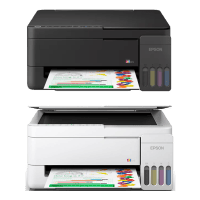
Epson ET-2910 Printer Manual
 | PDF manual |  | 189 pages |  | English |
Brief summary:
- This printer series supports printing, copying, and scanning in one device, making it suitable for home and small office use.
- The manual covers setup, maintenance, troubleshooting, and product specifications in detail.
- The printer uses an ink tank system instead of cartridges, which allows high-volume printing and easy refilling.
- Users should only use the original power cable and Epson-approved consumables for safety and reliability.
- Ink should be handled carefully to avoid skin, eye, or mouth contact.
- The printer supports wireless Wi-Fi printing, Wi-Fi Direct, and USB connection.
- Users can print from computers, mobile devices, AirPrint, and Mopria-compatible apps.
- The control panel includes dedicated buttons for:
- Power on/off
- Wi-Fi setup and diagnostics
- Black and color copy
- Stop/cancel operations
- Paper type selection
- Paper must be loaded correctly into the rear feeder, with proper alignment to avoid jams.
- Supported paper includes:
- Plain paper
- Glossy photo paper
- Matte paper
- Envelopes
- Long paper formats
- Scanning is performed through the scanner glass, and users should keep the glass clean for best image quality.
- Print quality can be improved by:
- Cleaning the print head
- Running nozzle checks
- Aligning the print head
- Performing power cleaning
- The printer provides status lights that indicate issues such as:
- No paper
- Paper jams
- Wi-Fi errors
- Low ink
- Maintenance box replacement needed
- Common maintenance tasks include:
- Checking ink levels
- Refilling ink tanks
- Cleaning the paper path
- Cleaning the scanner glass
- Replacing the maintenance box
- Network settings can be configured through Web Config in a browser for advanced setup and administration.
- The printer supports advanced print features like:
- Manual duplex printing
- Booklet printing
- Poster printing
- Multi-page per sheet
- Header/footer printing
- Anti-copy patterns
Frequently Asked Questions (FAQ) — Common User Problems
Q: My printer is not printing. What should I check
- Make sure the printer is powered on
- Check paper is loaded correctly
- Verify ink levels are sufficient
- Confirm USB or Wi-Fi connection is active
- Restart both printer and computer
Q: The printer shows a paper jam error, but I removed the paper
- Turn the printer off and on again
- Check for hidden paper inside
- Load A4 or Letter paper and let the printer attempt internal clearing
Q: Print quality is poor or lines are missing
- Run a nozzle check
- Clean the print head
- Align the print head
- Use recommended Epson paper types
Q: The printer is connected to Wi-Fi but cannot print
- Print a network connection report
- Reconnect using WPS or Wi-Fi Direct
- Reset network settings if necessary
Q: The scanner is producing blurry or dirty images
- Clean the scanner glass
- Remove dust or smudges
- Ensure the original document is flat and aligned properly
Q: Ink levels look incorrect after refilling
- Reset the ink level settings after filling the tanks
- Ensure tanks are filled to the upper line
Q: The maintenance box warning appears
- The maintenance box is almost full and needs replacement soon
- Printing may continue temporarily, but replacement will be required
Q: The printer does not turn off correctly
- Always use the Power button
- Do not unplug directly while the power light is flashing
Q: My mobile phone cannot detect the printer
- Ensure both devices are on the same Wi-Fi network
- Use Wi-Fi Direct if router connection is unavailable
- Confirm Epson Smart Panel or Mopria is installed if required
Q: The printer is making unusual noise
- Check for paper fragments inside
- Verify no foreign objects are in the feeder
- Make sure the printer is on a stable surface