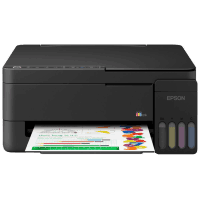
Epson ET-2911 Printer Manual
 | PDF manual |  | 189 pages |  | English |
Brief summary:
- This printer series is an all-in-one device that supports printing, scanning, and copying, making it suitable for home and small office use.
- It uses an EcoTank refillable ink system, which lowers printing costs and allows high-volume printing.
- The printer supports USB, Wi-Fi, and Wi-Fi Direct connections, making setup flexible across devices.
- Users can print directly from PCs, smartphones, tablets, AirPrint, and Mopria-supported apps.
- Paper is loaded through the rear paper feeder, supporting plain paper, photo paper, envelopes, and specialty media.
- The control panel provides quick access to power, Wi-Fi setup, copy functions, paper type settings, and error handling.
- Regular maintenance includes checking ink levels, refilling tanks, nozzle checks, print head cleaning, and print head alignment.
- The printer uses status lights to indicate problems such as paper jams, low ink, network errors, or maintenance box replacement.
- Scanning is done using the flatbed scanner glass, and keeping it clean improves scan quality.
- Advanced features include manual duplex printing, booklet printing, poster printing, and multi-page layouts.
Frequently Asked Questions (FAQ)
Q: Why is my printer not printing
- Check if the printer is powered on
- Make sure paper is loaded correctly
- Verify ink levels
- Confirm Wi-Fi or USB connection is active
Q: How do I fix paper jams
- Turn off the printer
- Remove all jammed paper carefully
- Check for small paper pieces inside
- Reload paper correctly and restart
Q: Why is print quality poor or missing lines
- Run a nozzle check
- Clean the print head
- Align the print head if needed
Q: Why can’t the printer connect to Wi-Fi
- Re-run Wi-Fi setup
- Print a network connection report
- Use Wi-Fi Direct if needed
Q: Why is the scanner blurry or dirty
- Clean the scanner glass
- Remove dust and fingerprints
- Place the document flat on the glass
Q: Why are ink levels incorrect after refilling
- Reset the ink level settings after filling
- Make sure the tanks are filled to the correct line
Q: What does the maintenance box warning mean
- The waste ink box is almost full
- It will need replacement soon
Q: Why won’t my printer turn off properly
- Always use the power button
- Do not unplug it while the power light is flashing
Q: Why can’t my phone detect the printer
- Make sure both devices are on the same Wi-Fi network
- Try Wi-Fi Direct if the router connection fails
Q: Why is the printer making unusual noise
- Check for stuck paper or foreign objects
- Ensure the printer is on a stable, flat surface